

The Comprehensive Workplace Ergonomics Checklist: 8 Points for 2025

An ergonomically designed workstation is the foundation for productive and healthy work. Factors such as sitting posture, desk height, and monitor alignment influence your well-being. Often, small adjustments can have a big impact and prevent complaints such as neck or back pain.
This detailed Workplace Ergonomics Checklist systematically guides you through all relevant areas. You receive clear checkpoints to optimize your workstation in the office or home office. Each item on the list provides concrete instructions for improving your work environment.
The goal is to create an environment that adapts to you, not the other way around.
We cover the following topics:
- Monitor and Screen Position: How to find the ideal height and correct distance.
- Keyboard and Mouse: The correct arrangement to avoid strain.
- Chair and Sitting Posture: The right adjustment for a healthy body posture.
- Desk Height and Workspace: Optimal height and organization of your area.
- Lighting and Visual Environment: How to reduce eye strain.
- Organization and Accessibility: Efficient arrangement of work tools.
- Footrest and Leg Support: Relief for back and legs.
- Breaks and Movement: Strategies for integrating movement into the workday.
Use this checklist as a tool to review your setup point by point and create a healthy, performance-enhancing work environment.
1. Your Monitor and Correct Screen Alignment
The correct positioning of your monitor is a fundamental building block of any Workplace Ergonomics Checklist. Incorrect alignment often leads to an unnatural head posture without you realizing it. This causes neck tension, headaches, and rapid eye fatigue. In the long term, chronic complaints can result. The correct adjustment of your screen supports a neutral body posture and relieves the spine and eyes.

Why this adjustment is important
People tend to unconsciously adapt their body to the position of the monitor. If the screen is too low, you lower your head and hunch your upper back. If it's too high, you hyperextend your neck. Both postures strain the cervical spine and muscles. A poorly positioned screen can also lead to dry eyes, as the viewing direction influences the blink rate.
Checkpoints for optimal alignment
Check your setup against these criteria to find the ideal position for your monitor:
- Height: The top edge of the screen should be at or slightly below eye level. Your gaze should meet the upper third of the monitor. A stack of books or a monitor stand can help.
- Distance: The ideal distance between your eyes and the screen is about an arm's length, i.e., about 50 to 70 cm. If the monitor is too close, it strains your eyes. If it's too far away, you lean forward.
- Tilt: Tilt the monitor slightly backward, about 10 to 20 degrees, so that the surface is perpendicular to your line of sight. This reduces reflections.
- Positioning: Place the monitor directly in front of you. If you have two monitors, the main screen should be centered. Both monitors should be seamlessly next to each other and at the same height to minimize head turning.
2. Your Keyboard and Mouse: Ergonomics for the Hands
Your keyboard and mouse are tools you interact with for hours. Their incorrect positioning is a common cause of complaints such as carpal tunnel syndrome or tenosynovitis. An ergonomic setup for keyboard and mouse is a crucial point on any Workplace Ergonomics Checklist. It promotes a neutral wrist posture and reduces strain on tendons and muscles.

Why this adjustment is important
An unnatural posture of the hands and wrists leads to permanent tension. Bent wrists when typing or reaching for a mouse that is too far away strain the structures in the forearm. In the long term, this can lead to chronic pain. The correct positioning is a preventive measure with a direct impact on your well-being.
Checkpoints for optimal alignment
Use these criteria to ergonomically position your keyboard and mouse:
- Height and Position: Place the keyboard so that your elbows are bent at about a 90-degree angle. Your forearms should be parallel to the floor. The mouse should be right next to the keyboard at the same height.
- Wrist Posture: Keep your wrists straight and neutral when typing and using the mouse. Avoid bending them up, down, or to the side. A wrist rest can help with this.
- Keyboard Tilt: Do not use the fold-out feet of the keyboard. A flat-lying keyboard promotes a straighter wrist posture and is ergonomically more advantageous.
- Mouse Selection: Consider using an ergonomic mouse. Vertical mice reduce forearm pronation, i.e., the twisting of the hand. This can reduce tension in the forearm. Learn more about ergonomic keyboards and mice on deskspace.de.
3. Your Office Chair and Correct Sitting Posture
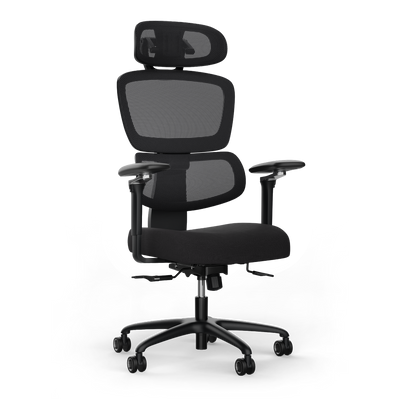
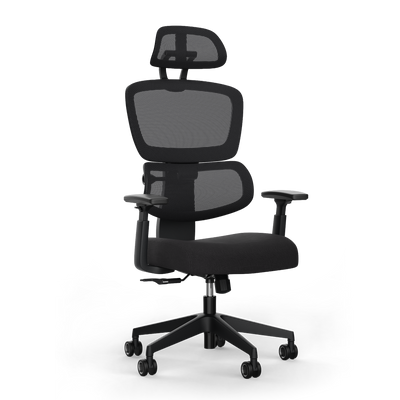
An ergonomic office chair with appropriate adjustment options is the foundation for a healthy body posture. It supports the natural shape of the spine and prevents incorrect loading. An unsuitable chair forces the body into an unhealthy position. This can lead to back pain and tension. The correct adjustment of the office chair is therefore a central point of any Workplace Ergonomics Checklist.

Why this adjustment is important
The office chair has the most direct and longest contact with your body. It must keep the spine in its natural S-shape and reduce pressure on the intervertebral discs. Models without adequate lumbar support cause the pelvis to tilt backward. This increases pressure on the intervertebral discs and weakens the core muscles.
Checkpoints for optimal sitting posture
Use these criteria to adjust your chair to your body measurements:
- Seat Height: Adjust the height so that your feet are flat on the floor. Your knees should form an angle of approximately 90 degrees. There should be a gap of two to three fingers between the back of your knee and the front edge of the seat.
- Seat Depth: Sit all the way back so that your back touches the backrest. The seat depth is correct if the gap between the back of your knee and the edge of the seat exists.
- Backrest and Lumbar Support: The curve of the backrest must be at the level of your pelvic crest. This provides optimal support for the lower back. The backrest should follow your movements.
- Armrests: The armrests should be adjusted so that your forearms rest loosely and your shoulders are relaxed. They should be at the same height as the tabletop.
Instructions for adjustment can be found in our guide on how to adjust your office chair ergonomically.
4. Your Desk Height and Workspace Arrangement
The correct desk height and a well-thought-out arrangement of your workspace are crucial. They prevent unnecessary stretching, bending, and twisting. An ergonomically optimized work surface, where all utensils are within reach, promotes a natural body posture. It is the basis of any comprehensive Workplace Ergonomics Checklist.

Why this adjustment is important
A desk that is too high or too low leads to an unhealthy posture. With a desk that is too high, you raise your shoulders, which leads to neck tension. If it's too low, you hunch your back. An unorganized work surface forces you to make compensatory movements. Constantly reaching for distant objects strains your shoulders and back muscles.
Checkpoints for optimal alignment
Use these criteria to design your desk and workspace:
- Height: Sit upright. Your forearms should be parallel to the tabletop, and your elbows should form an angle of 90 to 110 degrees. With a height-adjustable desk, you can adjust this position precisely.
- Organization: Arrange your work tools in reach zones. Important items like your keyboard and mouse should be in the primary zone, which you can reach without leaning forward. Less frequently used items belong in the secondary zone.
- Dynamics: Change your position regularly. If you have a sit-stand desk, alternate working 30 to 45 minutes sitting and 15 to 20 minutes standing. This change promotes blood circulation.
- Clearance: Ensure sufficient legroom under the desk. Remove obstacles so you can move and stretch your legs freely. Read more about this in our guide on how to calculate the optimal desk height.
5. Lighting and Visual Environment
Proper lighting is a crucial point on any Workplace Ergonomics Checklist. Insufficient or incorrect lighting forces the eyes to constantly adapt. This leads to digital eye strain, headaches, and difficulty concentrating. Glare-free and even lighting reduces eye strain and promotes productivity.
Why this adjustment is important
The human eye is not made for hours of staring at a monitor. Harsh contrasts between a bright screen and a dark room overstrain the eye muscles. Direct glare from windows or lamps causes reflections on the screen. This unconsciously leads to a cramped sitting posture. A study in German clinics showed that targeted task lighting reduced the incidence of headaches among staff by 23%.
Checkpoints for optimal alignment
Use these criteria to evaluate your lighting conditions:
- Light Source Position: Place your desk sideways to the window, at a 90-degree angle. This avoids direct glare. The primary light source should not shine directly into your field of vision or onto the monitor.
- Illuminance: For office work, an illuminance of about 500 lux on the work surface is recommended. A separate desk lamp complements the general room lighting.
- Glare and Reflection Freedom: Use blinds or curtains to regulate sunlight. Make sure that lamps do not create reflections on your screen. A matte screen can help.
- Type of Light and Flicker-Free: Prefer flicker-free light sources such as modern LEDs. An adjustable color temperature, for example, daylight white for concentrated work, can support perception.
- Combination of Lighting: Good lighting combines three levels: natural daylight, even basic lighting, and flexible task lighting directly at the workstation.
6. Organization and Accessibility at the Workplace
A well-thought-out organization of your workplace is an important point on any Workplace Ergonomics Checklist. Unnecessary twisting and stretching movements lead to physical strain. These small, repetitive movements add up throughout the day. They can cause tension in the shoulder, neck, and back areas. An ergonomic arrangement of your work tools minimizes these stresses.
Why this organization is important
Your body adapts to the arrangement of your workplace. If the punch is constantly out of your reach, you twist your upper body several times a day. The ergonomic principle of frequency of use states: What you need often must be in close proximity. Call centers that reorganized their workplaces according to this principle were able to observe a reduction in shoulder complaints. A clear structure also reduces visual stress.
Checkpoints for optimal organization
Optimize your setup by dividing your workplace into ergonomic zones:
- Primary Work Zone: Everything you constantly need should be in your direct reach zone. This includes your keyboard, mouse, and phone. You should be able to reach these items without moving your upper body.
- Secondary Work Zone: Items you use frequently but not constantly belong in the extended reach zone. This includes a notepad, pens, or a stapler. You can reach them with a slight extension of your arm.
- Tertiary Work Zone: Rarely used items such as folders or office supplies are stored outside these zones, for example, in drawers or shelves. This keeps your work surface clear.
- Document Position: If you frequently work with printouts, place a document holder between the keyboard and monitor. This prevents constant head turning and keeps the neck neutral.
- Reduce Clutter: A tidy desk is a basic requirement. Use drawer organizers and clear labels to find items quickly.
7. Footrest and Lower Body Support
The right support for your feet and legs is a crucial point on any Workplace Ergonomics Checklist. Without firm ground contact for your feet, there is strain on your lower back and thighs. A footrest corrects these posture errors. It creates a stable base, promotes blood circulation, and brings the spine into a neutral position. It is especially important for shorter people or with non-height-adjustable desks.
Why this adjustment is important
If your feet dangle in the air, pressure on the underside of your thighs increases. This can restrict blood circulation. At the same time, the pelvis tilts backward, which rounds the lower back and strains the intervertebral discs. An ergonomic footrest solves this problem by compensating for the height difference. Studies in call centers showed that the introduction of footrests led to a reduction in leg complaints.
Checkpoints for optimal support
Check your setup against these criteria to optimally support your lower body:
- Firm Stance: Your feet should rest completely and flat on the floor or a footrest. Your knees should form an angle of about 90 degrees or more.
- Size and Surface: The footrest must be large enough for both feet. A non-slip surface is crucial so that your feet do not slide off.
- Angle and Dynamics: Ideally, choose a tilt-adjustable footrest. A slight angle that matches the natural position of your ankles is most comfortable. Models with a rocking function promote blood circulation.
- Holistic Approach: Support does not end with the footrest. Healthy footwear at work also plays a role in supporting the lower body and maintaining a healthy posture.
8. Break Planning and Movement Patterns
Even the perfectly equipped workstation loses its effect if you remain in the same position for hours. Regular breaks and movement patterns are an indispensable point on any Workplace Ergonomics Checklist. Static sitting interrupts blood circulation and strains muscles unilaterally. Integrating conscious movement into the workday prevents these effects and prevents illnesses.
Why this adjustment is important
The human body is made for movement. Remaining in one position for long periods reduces metabolism and increases pressure on the intervertebral discs. This can lead to back pain and tension. The Federal Institute for Occupational Safety and Health (BAuA) emphasizes that dynamic sitting and regular interruptions of sitting phases are crucial for health. Finnish studies show a productivity increase of up to 15% in employees who take structured breaks.
Checkpoints for optimal movement and breaks
Integrate the following routines into your workday to stay active:
- Integrate micro-breaks: Use the 20-20-20 rule. Every 20 minutes, look at an object at least 20 feet (approx. 6 meters) away for 20 seconds. This relaxes your eye muscles.
- Stand up regularly: Stand up at least every 30 to 60 minutes to stretch. A height-adjustable desk facilitates the transition between sitting and standing.
- Actively plan movement: Make phone calls standing or walking. Use the stairs instead of the elevator. Establish walking meetings for discussions.
- Use breaks consciously: Do not spend your longer breaks at your desk. A short walk in the fresh air increases the oxygen supply to the brain.
- Use digital helpers: Use apps or calendar reminders that remind you to take movement breaks. Many smartwatches offer such functions.
8-Point Comparison: Workplace Ergonomics
| Measure | Implementation Complexity | Resource Requirement | Expected Results | Ideal Use Cases | Main Benefits |
|---|---|---|---|---|---|
| Monitor and Screen Positioning | Low-medium (settings, possibly arms) | Low to moderate (monitor arms, anti-glare) | Less neck and eye strain; better head posture | Office and home office with screen work | Fast, cost-effective ergonomic improvement |
| Keyboard and Mouse Ergonomics | Medium (purchase of new devices, re-adaptation) | Moderate to high (erg. keyboards, mice, rests) | Reduction of wrist complaints; higher precision | Intensive typing/mouse work (Dev, data entry) | Prevention of carpal tunnel syndrome; increased comfort |
| Chair and Sitting Posture | Medium-high (purchase, correct adjustment) | High (high-quality office chairs) | Reduced back pain; better spinal support | Sedentary employees; long-term work | Long-term comfort; better posture and stability |
| Desk Height & Workspace Layout | Medium (height adjustment, redesign) | Moderate to high (sit-stand desks, organizers) | Fewer unfavorable postures; more movement | Flexible workspaces; sit-stand users | Promotes dynamic work; increases efficiency |
| Lighting & Visual Environment | Medium (lighting adjustment, glare protection) | Moderate (luminaires, control systems) | Reduction of eye strain and headache; better alertness | Screen work, detailed tasks | Improved visual comfort; circadian benefits |
| Workplace Organization & Accessibility | Low (rearrangement, organizers) | Low (storage, document holders) | Fewer reaches; faster workflows | Call centers, hot-desking, desks in general | Easy to implement; immediate efficiency increase |
| Footrest & Lower Body Support | Low (purchase, adjustment) | Low (compact accessories) | Better leg/back support; better circulation | Individuals <165 cm, high work surfaces | Cost-effective; improves sitting posture and comfort |
| Break Regulations & Movement Patterns | Medium (organization, policy, reminder) | Low to moderate (apps, training) | Less fatigue; lower MSD risk; better concentration | All sedentary activities | Very cost-effective; strong health-promoting effect |
Put Your Checklist Into Practice
You now have a comprehensive Workplace Ergonomics Checklist at hand. This knowledge is the first step. Change begins with implementation in your work environment. The points on the checklist are building blocks of a system that contributes to your health and productivity.
The beginning is often the biggest challenge. Don't be discouraged. Start with the adjustments you can implement immediately. These include correctly adjusting your office chair, positioning your monitor, and organizing your desk. These changes can bring about improvements in just a few days.
From Knowledge to Action: Your Plan for the Coming Weeks
An ergonomic workstation is a dynamic process of adaptation. Your body and your requirements change. Consider the checklist as a document you use regularly.
Here's how to proceed:
- Prioritize your pain points: Where do you feel discomfort? Does your back hurt? Do your eyes get tired quickly? Focus first on the areas of the checklist that address these problems.
- Plan a weekly review: Take 15 minutes every Friday to check your setup. Are you still sitting correctly? Is your monitor aligned properly? This routine helps avoid bad habits.
- Consistently integrate movement: Ergonomics doesn't end with equipment. Movement and breaks are important. Use technology. Set timers or use apps that remind you to move.
Note: The best ergonomic equipment is ineffective if it is not combined with dynamic work habits. Regular changes in posture are crucial.
The Investment in Your Performance
Applying the Workplace Ergonomics Checklist is an investment in your cognitive performance and job satisfaction. A workplace that supports your body creates the foundation for peak mental performance.
You not only reduce the risk of chronic ailments. You create an environment that allows you to work longer with concentration and less fatigue. The result is higher quality work and more energy after work. Treat your workplace like a pilot's cockpit. Every element must be perfectly positioned. Your health is your most important asset.
Are you ready to take the step towards a dynamic and healthy workplace? A height-adjustable desk is the basis for active work and a complement to your Workplace Ergonomics Checklist. Discover the models at DESKSPACE that combine stability, design, and functionality.


