

Ergonomic desk setup made easy

You're probably already sitting at your desk. Perhaps on a chair that somehow fits. Perhaps at a table that looks good, but forces you into a posture that you only notice in the evening.
This is where it's decided whether you can set up your desk ergonomically or just have furniture standing in the room. A good setup not only prevents discomfort. It also helps you work more calmly, focus more clearly, and combine technology, lighting, and movement routines so that your workstation suits your working style.
If you spend many hours in front of a screen, you don't need decor tips first. You need a clear sequence. First, your body sits correctly. Then come the desk, monitor, input devices, and finally the finer points like cables, lighting, and accessories.
The Basics: Correctly Adjusting Chair and Desk Height
Most people start with the desk. That's the wrong start. Your body sits on the chair, so that's where ergonomic adjustment begins.

Adjust the chair first
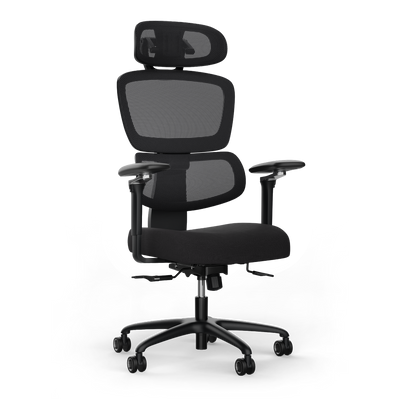
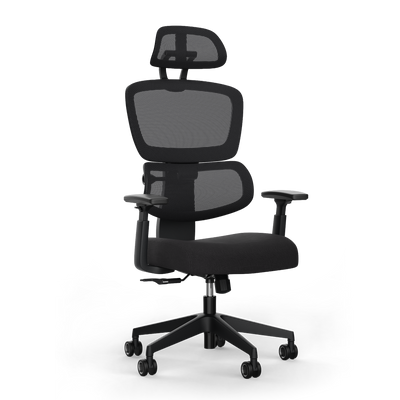
Adjust the seat height so that your feet are flat on the floor. Your knees should form an angle of at least 90 degrees. Your shoulders should remain relaxed. You neither slide forward nor pull your legs under the chair.
If this doesn't work with flat feet, the chair is often too high or the desk is too high. Then no amount of getting used to it will help. Then a real adjustment is needed, and if necessary, a footrest.
Practical rule: If your feet don't have stable contact with the floor, the starting position is already lost.
Also pay attention to the backrest. It should support your back without pushing you forward. A slightly reclined backrest often relieves the back better than a rigid, upright posture. "Sitting up straight" sounds disciplined, but in practice often leads to unnecessary tension.
Then adjust the desk height to your body
Only when the chair fits do you adjust the table. The most reliable rule is elbow height when seated. Your forearms rest relaxed and horizontally on the tabletop or just above it. You don't have to raise your shoulders, and your wrists don't bend upwards.
According to Fraunhofer IPA on ergonomic workstation design, correctly adjusted workstations reduce back pain by up to 40%. It is also emphasized there that the correct height is based on elbow height when seated.
The order for adjustment
- Set seat height. Feet fully on the floor, knees at a right angle or slightly more open.
- Adjust backrest. Back is supported, shoulders remain relaxed.
- Adjust desk height. Forearms rest loosely, without shrugging shoulders.
- Check legroom. Nothing under the desk should block your posture.
- Fine-tune in working mode. Don't pose, but type, click, read briefly.
| Element | How you recognize the correct setting |
|---|---|
| Chair | Feet are stable, knees remain relaxed |
| Desk | Forearms rest loosely, shoulders remain low |
| Overall posture | No pressure in shoulders, wrists, or backs of knees |
If you want to adjust your chair properly, a detailed guide on ergonomically adjusting an office chair helps.
With a height-adjustable desk, a second working height is added. When standing, the principle remains the same: shoulders relaxed, forearms at a comfortable height, no rounded back. Many people set the desk too high when standing. Then the shoulders move upwards, and the tension is no longer in the lower back, but in the neck.
Looking Ahead: Optimally Aligning Monitor and Field of View
Once the chair and desk fit, the next mistake often shows up with the screen. The monitor is too low, too far to the side, or too close. Then your head is constantly working against the setup.

Three rules for the monitor
The most important rule first: The top edge of the monitor should be at eye level. This keeps your head in a natural position instead of constantly tilting downwards.
The second rule concerns the distance. A good starting point is one arm's length. You want to see content clearly without moving your upper body forward.
The third rule is the tilt. Hold the screen so that you look at it without reflections and without lifting your head. A slight tilt is often sufficient. More adjustment only makes sense if light or seating position requires it.
A misplaced monitor not only forces you into a bad posture. It also shifts your focus slightly off-center all day long.
Laptop and multi-screen setup
Laptops are almost always a compromise ergonomically. The keyboard is permanently connected to the screen. If the screen is positioned correctly, the keyboard is too high. If the keyboard fits, the screen is too low. Therefore, a laptop only works properly long-term with an external keyboard and mouse plus a riser or monitor arm.
With two monitors, it depends on the use. If you almost always work on a main screen, then it is centered in front of you. The second one is placed to the side. If you use both equally often, move both closer together and align the center between them with your body.
Typical mistakes in everyday life
- Monitor too low. This often leads to a forward head posture.
- Monitor offset to the side. Then you constantly twist your neck and upper body.
- Laptop directly on the desk. This looks compact, but is rarely sensible for long work.
- Too many devices at one height. Then there is no space for a clear line of sight.
If you need more flexibility in your field of vision, a monitor VESA mount helps, because you can adapt height, distance and position faster to your working style.
Everything under control: Arranging peripherals and work tools
Many setups look tidy and are still unergonomic. The reason is often not the chair, but the position of the keyboard, mouse, and work tools. Your hands work all day. If they are in a crooked line, the strain extends to your shoulders and neck.

According to the Ergonomics Catalog on the correct positioning of work tools, ergonomic arrangements can reduce musculoskeletal disorders by up to 50%. It also describes that torso rotations of more than 15 degrees increase neck strain by 28%.
The linear alignment
The simple principle is: nose, keyboard, and center of the screen should be as much as possible in a straight line. This prevents constant twisting. This sounds minor, but it makes a big difference in everyday life, especially if you work concentrated in one place for many hours.
The keyboard belongs directly in front of you. Not slanted. Not half-pushed under the monitor. Not so far back that you have to hold your arms in the air.
For your palms, there should be about 10 cm of space between the keyboard and the edge of the desk. This distance helps to keep your wrists more neutral, instead of bending them at the edge.
What needs to be close and what can be further away
Not every work tool needs the same space. What matters is how often you use it.
| Zone | What belongs there | Why |
|---|---|---|
| Direct area | Keyboard, mouse, main notepad | You work here constantly |
| Near area | Phone, tablet, documents | Quickly accessible without twisting |
| Edge area | Chargers, decor, rare tools | Don't disrupt the working line |
What works in practice
- Mouse close to the keyboard. A large distance pulls the arm outwards and strains the shoulder.
- Place documents centrally if you often switch between paper and screen. A document holder between the keyboard and monitor is often better than a stack on the left or right.
- Do not place the tablet flat next to the keyboard if you read or write on it a lot. Otherwise, your head will constantly tilt sharply to the side or downwards.
- Use an external keyboard with a laptop. Otherwise, the device forces you into a compromise that won't remain clean in the long run.
If you have to twist your upper body for every second task, it's not your discipline that's wrong. It's your setup.
Ergonomic keyboards or vertical mice can be useful. However, they don't solve a fundamental problem if the position in the room is incorrect. First comes the arrangement. Then the specialized hardware.
Stay in Motion: Dynamics and Routines in Everyday Life
A properly set up workstation is only half the battle. The rest is decided throughout the day. Even the best posture becomes bad if you maintain it unchanged for too long.
The most sensible view of ergonomics is therefore not static. You need a workstation that allows movement and routines that regularly get you out of the same position. The BGN advises alternating phases for well-being. This is precisely the difference in everyday life between a setup that only looks correct and one that actually works.
A simple routine for sitting and standing phases
Many make the change too complicated. It's enough to set fixed anchors in your day.
- For concentrated writing, sitting often remains more stable.
- For calls or short meetings, standing is often the better choice.
- After longer periods of focus, a change of posture helps more than another cup of coffee.
- When concentration decreases, movement is usually worthwhile first, then continuing to work.
If you use a height-adjustable table, save typical heights. This reduces friction. The faster the change, the more likely you are to actually use it.
Micro-breaks that remain realistic
Not every break needs a program. Small interruptions are often sufficient if you take them regularly.
- Release shoulders. Briefly circle them, then consciously let them sink.
- Look into the distance. This relaxes constant visual focus.
- A few steps. To the printer, to the window, to the kitchen.
- Straighten up and breathe deeply. Especially after intensive screen work.
Movement is not an extra to the ergonomic workstation. Movement is a part of it.
What doesn't work: sitting for hours and hoping a good chair compensates for everything. What also rarely works: standing all day because standing feels healthier. The body wants change, not a new continuous loop.
Pro Setup: Optimize Cables, Lighting, and Accessories
Once the basic posture is correct, the details come into play. This is where a tidy setup distinguishes itself from a workstation that truly runs smoothly in everyday life. Cables, lighting, and accessories often determine whether you can work freely or are constantly compensating for small disturbances.

According to the FlexiSpot guide to optimal desk setup, a desk should be at least 160 x 80 cm and cover an adjustment range of 65 to 125 cm. Smaller individuals under 170 cm especially benefit from this flexibility and from accessories like footrests.
Route cables so they don't interfere with your work
Cable management isn't just about aesthetics. Your body needs space under the table. If power strips, power adapters, and loose cables are hanging there, you'll lack legroom. With height-adjustable desks, a second problem arises: cables must move with the desk without straining or getting caught.
A clear separation is useful:
- Power bundled under the desktop
- Device cables close to the respective end devices
- Only the necessary length visible
- Nothing loose in the legroom
For clean routing and free legroom, a structured approach to cable management at the workplace helps.
Light without glare and shadows
Good light indirectly improves posture. If you work against reflections or if shadows fall on your keyboard and notes, you automatically evade. Then you sit crooked, lean forward, or unnecessarily turn your head.
Pay attention to two points:
| Topic | Good solution | Typical mistake |
|---|---|---|
| Screen light | Lateral light incidence without reflection | Window directly behind the monitor |
| Work light | Additional light for notes and keyboard | Spotlight with harsh glare |
A desk lamp should illuminate the work surface without shining directly into your field of vision. This is especially important for hybrid setups with a screen plus paper.
Accessories that solve real problems
Not every extra is useful. Accessories are useful when they eliminate a specific limitation.
- Footrest for shorter individuals, if feet otherwise cannot be placed stably.
- Monitor arm for flexible height and more free desk space.
- Notebook stand for laptop setups with external keyboard.
- Document holder for anyone who works a lot with paper or reference material.
A practical example: A creator or tech setup with multiple devices often requires more space reserves and stable lifting movement than a simple office workstation. A large, electrically height-adjustable desk can accommodate this. A model like the DESKSPACE PRO PLUS is an option in this context if you are looking for a height-adjustable desk with a large work surface and electric adjustment. The brand name is not relevant here, but rather that the desk suits your equipment, your space requirements, and your body size.
A professional setup often appears calm because nothing is improvised. Every item has its place and does not hinder movement.
Your Ergonomic Workspace: The Checklist for Success
An ergonomic workspace is not created by a single product. It is created by the correct sequence and small, cohesive adjustments.
According to a Statista survey on important criteria for the ideal office workspace, 9% of Germans consider ergonomic desks and chairs a central criterion. This shows how relevant a health-promoting setup has become for daily work life.
The Order You Should Maintain
Always check your setup in this sequence:
- Chair Seat height, foot contact, back support.
- Desk Working height appropriate for your relaxed forearms.
- Monitor Top edge of the screen at eye level, looking straight ahead.
- Peripherals Keyboard and mouse centered and close enough to the body.
- Environment Light, cables, accessories, and clear movement area.
Quick Check for Daily Use
- Feet stable on the floor or a footrest
- Knees and elbows at a relaxed angle
- Shoulders relaxed, not hunched
- Gaze central on the screen
- Keyboard with distance from the table edge for a clean hand position
- Regular changes between sitting, standing, and short movement breaks
How You Know Something Isn't Right Yet
Not every poor posture feels immediately dramatic. Often, problems manifest gradually.
| Signal | Possible Cause |
|---|---|
| Neck quickly tenses up | Monitor too low or to the side |
| Shoulders become tense | Desk or input devices too high |
| Pressure in the wrists | Keyboard position unfavorable |
| Legs feel cramped | Legroom or cables under the desk interfering |
If you want to set up your desk ergonomically, don't think in terms of one-time settings. Your setup must function with your workday. Different tasks, different devices, and different body sizes sometimes require different fine-tuning. That's precisely why a workspace that can be quickly adapted is worthwhile.
If you are setting up your workspace anew or want to cleanly improve an existing setup, you will find height-adjustable desks, ergonomic chairs, and suitable accessories for home offices, team workstations, and technical setups at DESKSPACE. The key is not to buy as much as possible, but to choose the parts that truly support your posture, space requirements, and work routine.


